Skip to content
SX Sistemas
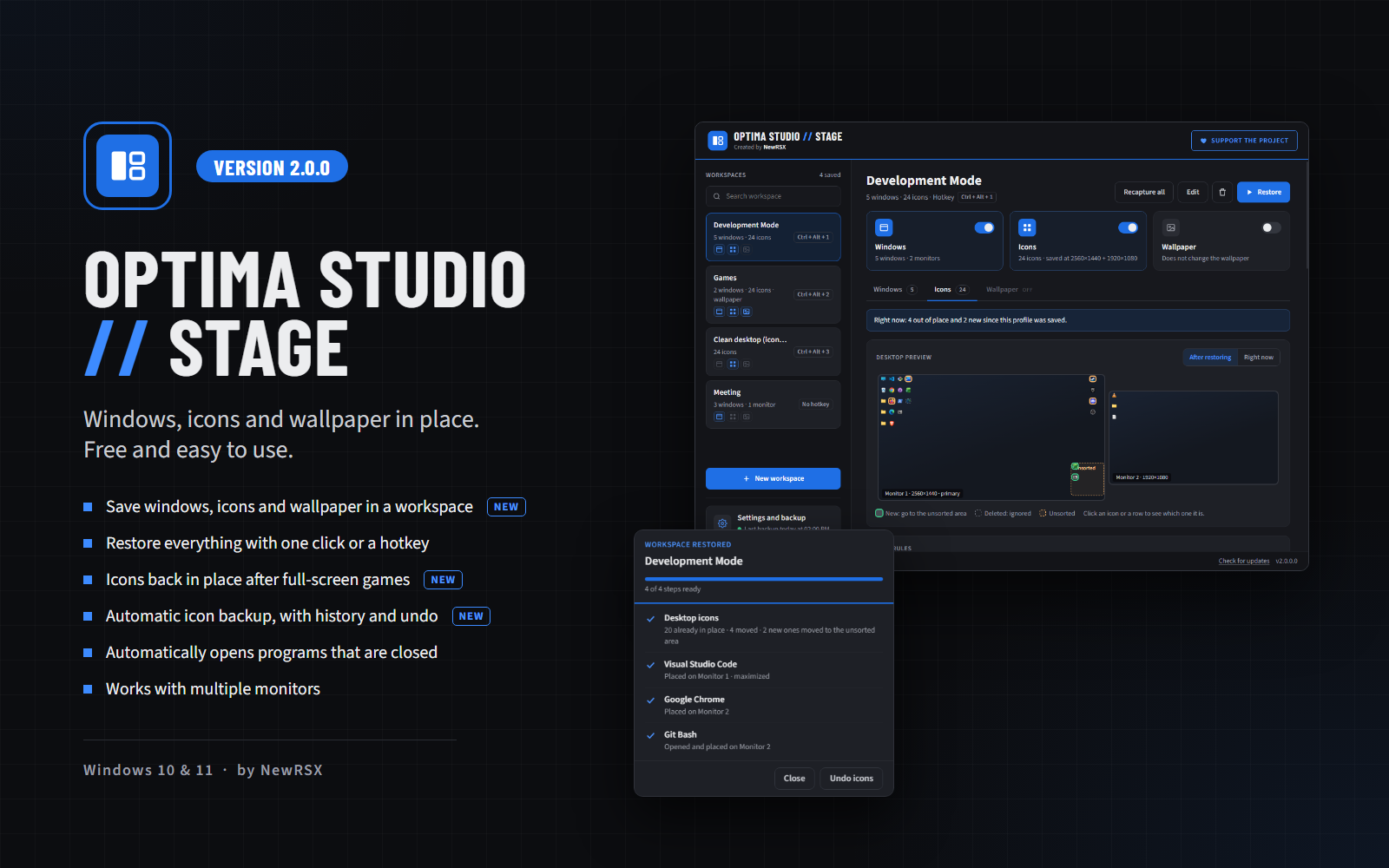
Optima Studio Stage window and icon organizer for Windows: Development Mode workspace with the Windows, Icons and Wallpaper parts and the desktop preview

Program image not found.
assets/img/programas/optima-studio-stage-v2.0.0-en.png

Optima Studio // Stage

Windows, icons and wallpaper in place. Free and easy to use.

Free

If you work with several programs and monitors, you lose time every day arranging your screen: the editor on one side, the browser on the other, the terminal in the corner. And all it takes is a full-screen game for Windows to scramble every icon on your desktop.

Stage saves that arrangement under a name and puts everything back with one click: your windows, your icons and even your wallpaper. If a program is closed, it opens it for you.

Version
2.0.0
Installer date
Developer
NewRSX
System
Windows 10 and 11 (64-bit)
Languages
Portuguese and English
License
Free

If Windows shows a security warning when opening it, click “More info” and then “Run anyway”.

What you can do with Optima Studio // Stage

Your windows, your icons and your wallpaper, ready in one click.

  • Icons always in place

    Save the position of every desktop icon and put them all back with one click, even after Windows messes them up.

  • Back after the game

    Played full screen, disconnected a monitor or updated your video driver? When the resolution goes back to normal, Stage rearranges the icons by itself.

  • Automatic backup with history

    Stage saves your icons every so often and when you shut down the PC. Preview each version and restore the one you want. Every restore can be undone.

  • Named workspaces

    Save as many layouts as you want: Development Mode, Design Mode, Meeting, Gaming + Stream. Each one saves only what you turn on: windows, icons or wallpaper.

  • Wallpaper per workspace

    One wallpaper for work and another for gaming: it changes along with everything else when you restore the workspace.

  • New icons sorted

    Icons that weren't in the workspace go to an “unsorted” area that you draw wherever you want.

  • Preview before applying

    See how your icons are now and how they will look before restoring, with each monitor in its real position.

  • Restores position, size and state

    Each window goes back to the same spot, maximized, minimized or at the size it was.

  • Opens what is closed

    If a program in the workspace isn't running, Stage opens it, waits for the window and places it.

  • Multiple monitors

    Works with two, three or more monitors. If a monitor is disconnected, its windows move to the primary one.

  • Focus Mode

    When restoring, minimizes everything that isn't part of the workspace.

  • Smart matching

    Two windows of the same program? Tell them apart by title, for example VS Code with the right project.

  • Monitor map

    See at a glance where each window and each icon will go.

  • Hotkey per workspace

    Assign a keyboard shortcut to each workspace. With Stage in the tray, the hotkeys work all the time.

  • Command line

    Restore a workspace from a Windows shortcut or a Macro Studio // Keyboard key, even with Stage closed.

How it works

Three steps to stop arranging your screen by hand.

  1. Arrange

    Set up your windows, icons and wallpaper the way you like.

  2. Save

    Click New workspace, give it a name and choose what it saves: windows, icons and/or wallpaper.

  3. Restore

    Anytime, with one click or a hotkey. Stage even rearranges the icons by itself.

Requirements

What you need to install and use Stage.

  • Windows 10 or 11 (64-bit)
  • No administrator rights needed to install

Questions about Optima Studio // Stage

Common questions about the window and icon organizer.

Does Stage save browser tabs?

No. It saves the position of browser windows, not the tabs inside them.

Why wasn't a window moved?

Programs running as administrator can't be moved by regular programs, for Windows security reasons. Stage tells you when this happens.

Does it work with Microsoft Store apps?

It places Store apps that are already open, but it can't open them by itself.

Do I need to keep Stage open?

To restore, no: you can use the command line with Stage closed. But starting with version 2.0, closing the window keeps Stage in the tray, next to the clock. That is how hotkeys, automatic icon backup and putting icons back after a full-screen game work. It can start with Windows, straight to the tray. To quit for good, right-click the tray icon and choose Exit.

Does Stage touch the files on my desktop?

No. It only changes the position of the icons, just as you would by dragging them with the mouse. Nothing is deleted, moved to another folder or renamed.

Do my icons come back if I change the resolution or monitor?

Yes. If your monitor setup is different from the saved one, Stage converts the positions proportionally (or asks first, if you prefer). And when the resolution goes back to normal after a game, it puts the icons back on its own.

Do I need to turn off “Align icons to grid”?

No. It works with it on or off. Only “Auto arrange icons” gets in the way, because Windows rearranges the icons on its own, and Stage can turn that option off for you.

I updated from version 1.x. Will I lose my workspaces?

No. Your workspaces stay the same, with the Windows part turned on. To include icons or wallpaper, turn that part on in the workspace.

What's new in version 2.0.0

Desktop icons and wallpaper. Each workspace can now save your windows, your desktop icons and your wallpaper, and you turn on only what you want. Stage also backs up your icons automatically and puts everything back when Windows messes them up, for example after a full-screen game.

Also new: an “unsorted” area for new icons, backup history with preview and undo, and Stage stays in the tray and can start with Windows.