Skip to content
SX Sistemas
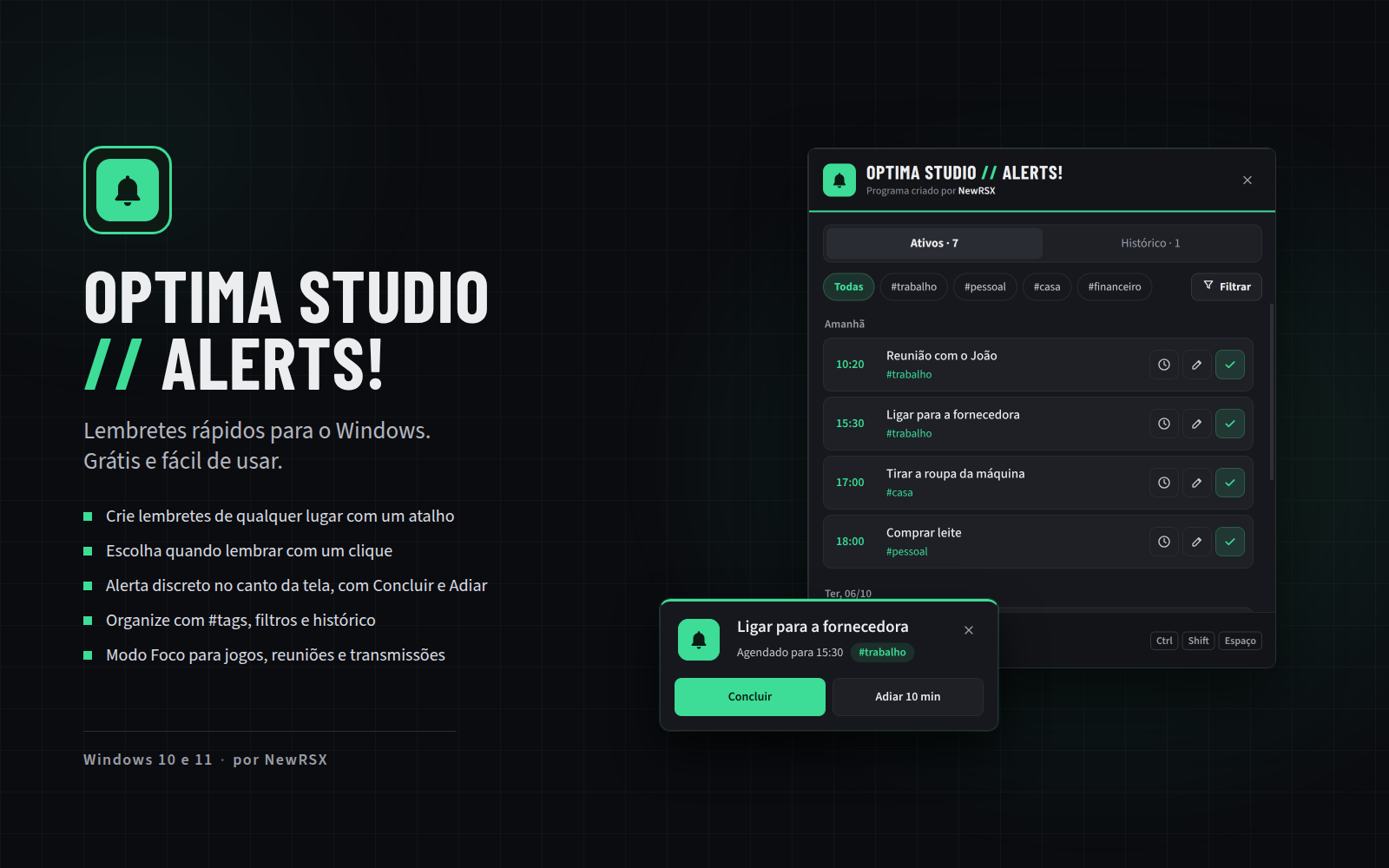
Optima Studio Alerts! reminder app for Windows: reminder list with tags and an alert in the corner of the screen with Done and Snooze buttons

Program image not found.
assets/img/programas/optima-studio-alerts.png

Optima Studio // Alerts!

Free reminder app for Windows

Free

Optima Studio Alerts! creates quick reminders on Windows. With a shortcut, you jot down a reminder from anywhere and pick when you want to be reminded with one click.

At the scheduled time, a discreet alert appears in the corner of the screen, with Done and Snooze options. Organize everything with #tags, filters and history, and use Focus Mode for gaming, meetings and streaming.

Version
1.0.0
Installer date
Developer
NewRSX
System
Windows 10 and 11
Language
Portuguese
License
Free

If Windows shows a security warning when opening it, click “More info” and then “Run anyway”.

What you can do with Optima Studio Alerts!

Reminders for work, home and everyday commitments, without leaving what you're doing.

  • Reminder with a shortcut

    Create a reminder from anywhere in Windows with a keyboard shortcut.

  • Pick the time in one click

    Set when you want to be reminded with a single click.

  • Discreet alert

    The alert shows up in the corner of the screen, without taking over what you're doing.

  • Done or snooze

    Mark it as done or snooze the reminder right from the alert.

  • Tags, filters and history

    Organize with #tags such as #work and #home, filter the list and review what's already done.

  • Focus Mode

    For gaming, meetings and streaming, when an on-screen alert would get in the way.

Questions about Optima Studio Alerts!

Common questions about the reminder app.

Is Optima Studio Alerts! free?

Yes. Optima Studio Alerts! is free to download and use. If you'd like, you can support the developer through the link next to the download button.

How do I create a reminder?

With a keyboard shortcut, from anywhere in Windows. You type the reminder and pick when you want to be reminded with one click.

How does the alert show up?

At the scheduled time, a discreet alert appears in the corner of the screen, with Done and Snooze buttons.

Can I snooze a reminder?

Yes. The alert itself has a Snooze button, which pushes the reminder a few minutes ahead, and a Done button for when the task is finished.

Can I organize my reminders?

Yes. You mark reminders with #tags, such as #work or #home, filter the list and check the history for what's already done.

What is Focus Mode for?

Focus Mode is made for gaming, meetings and streaming, moments when an on-screen alert would get in the way.

Which Windows versions does it support?

Windows 10 and Windows 11.

Why does Windows show a warning during install?

Windows shows this warning for programs that don't have a paid digital signature yet. Click “More info” and then “Run anyway” to continue.